The Focal Easy Guide to Adobe Audition 2.0

On launching Audition 2.0 you will be met with a brand new graphical interface, including new workspace panels that can be customised along with a revamped Mixer and Effects Mastering Rack.
Audition is made up of three main workspace areas: Multitrack View, Edit View and CD View, each view having its own panel layout and purpose. Each workspace is made up of separate panels that can be resized, docked or grouped to other panels within the workspace. Panels can also be floated separately.
In this chapter we will firstly look at an overview of all the different panels and interfaces and what each is used for.
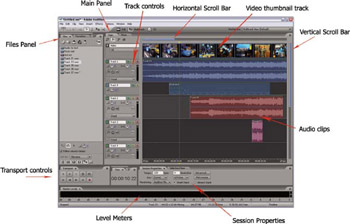
The Multitrack enables you to record, edit and arrange multiple mono and stereo audio files into a musical session. The Multitrack View is made up of separate panels that can be resized and docked to other panels, customising your workflow. The Main panel is where multiple audio clips can be arranged along a timeline. A video clip can be imported, allowing you to accurately synchronise sound effects and music to the picture. There are controls to adjust volume, panning, add real-time effects and mix, all from within the Multitrack View.

Within the Multitrack View you have the Main panel showing audio and video tracks vertically, with video thumbnail preview and audio clips displayed horizontally across the panel. At the bottom of the panel the horizontal ruler or timeline shows hours, minutes and...