Database Modeling with Microsoft Visio for Enterprise Architects

Chapter 6: Configuring, Manipulating, and Reusing ORM Models

6.1 Configuring ORM Preferences

When you first work with the ORM modeling solution, the tool applies various default settings to determine how it displays the user interface, and how it reacts to certain user commands. You can change these settings to better suit your personal preferences by entering your choices in the Database Modeling Preferences dialog.

To access this dialog, choose Database > Options > Modeling from the main menu. The dialog includes Fact Editor and ORM Diagram panes for setting ORM preferences. The other two panes deal with preferences for the logical modeling solution, and are covered in a later chapter.

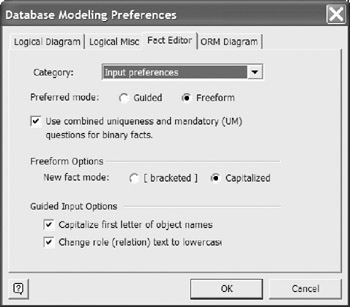
Figure 6-1 shows the Fact Editor pane of the dialog with the category set to Input preferences. Use this to choose Guided or Freeform entry, decide whether to combine "at most one" and "some" as "exactly one" in constraints, and use capitals or brackets to distinguish object types. These options were explained in sections 4.2 and 4.3.


Figure 6-1: Configuring input preferences for the Fact Editor.

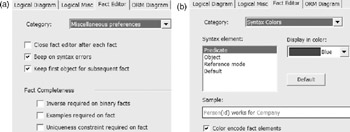
Use the Category list-box in the Fact Editor pane to select the Miscellaneous preferences and Syntax Colors options displayed in Figure 6-2. These options should be selfexplanatory. For further details on any of these options, select the option, then press the F1 key to display the context-sensitive help.


Figure 6-2: Configuring other Fact Editor preferences.

Select the ORM Diagram tab of the Database Modeling Preferences dialog to display the ORM Diagram pane shown in Figure...

UNLIMITED FREE
ACCESS
TO THE WORLD'S BEST IDEAS

SUBMIT
Already a GlobalSpec user? Log in.

This is embarrasing...

An error occurred while processing the form. Please try again in a few minutes.

Customize Your GlobalSpec Experience

Category: Glazing
Finish!
Privacy Policy

This is embarrasing...

An error occurred while processing the form. Please try again in a few minutes.