Complete PCB Design Using OrCAD Capture and PCB Editor

The first example demonstrates the basics of schematic entry in Capture, including finding and placing parts, connecting parts and using global power nets, and generating a bill of materials to assist in the design process. The example continues with PCB design in PCB Editor and demonstrates how to specify board requirements, such as trace width and spacing, and setting up the overall board design; how to define layers; and how to perform manual and automatic routing.
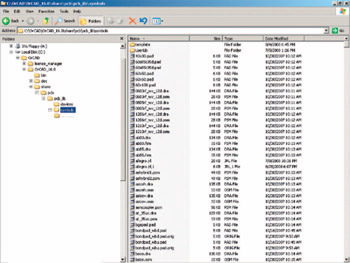
To follow the example exactly as it is presented here, you need to copy the footprints for this example from the Web site for this book. Copy the contents of the symbols file folder located in the Projects/Analog_Ex folder (Figure 9-1).
Although all the schematic and design files for this example are also included on the Web site, you need not copy them, because all the Capture parts in the example are already included with the OrCAD software. However, if you choose to copy the design files simply copy the entire ANALOG_EX folder into your project folder. If you have not set up a project folder, now would be a good time to set one up. You can set it up anywhere your computer has access to it, and OrCAD should have no problem with it.
Before you start a PCB design process, you will likely have some sort of preliminary...