Visual Basic for Network Applications
Learn how to add network functionality to your Visual Basic applications.
 TABLE OF CONTENTS
 To create a MAPI mail application, first make sure that the MAPI system is installed on your computer (see earlier in this chapter) and that you have installed the MAPI controls within Visual Basic. Since the MAPI controls generate messages that control the Microsoft Mail or Exchange client (depending upon the version of Windows), you will often see dialog boxes from these clients displayed. In almost all cases, it is possible to suppress these dialog boxes by supplying the information required you will see how each method looks to the user throughout the following examples.
Start by dragging the MAPISession and MAPIMessages control icons onto your main program form. Enter the following code:
Private Sub Form_Load() MAPISession1.SignOn MAPISession1.SignOffEnd Sub
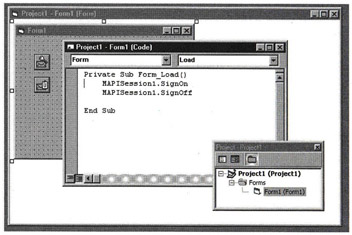
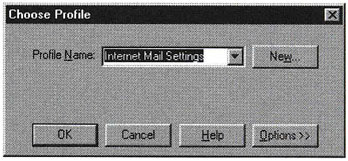
This displays the Exchange login screen prompting for the username and password before signing in the user to the mail server, then promptly signing off again. To get rid of this username prompt screen, simply provide the basic information that the MAPISession control requires so that the program code now looks like:
Private Sub Form_Load() 'simple sign on without dialog box MAPISession1.UserName = "Simon" MAPISession1.Password = "password" MAPISession1.SignOn MAPISession1.SignOffEnd Sub
Now that we have established a simple automatic login to...