Winternals: Defragmentation, Recovery, and Administration Field Guide

In this section, I will detail most of the functions and features available within Process Explorer. I will not touch on every single nuance available within the program, because that would be very time-consuming, and besides, Process Explorer comes with a highly detailed Help function that obviates the need for a detailed explanation here.
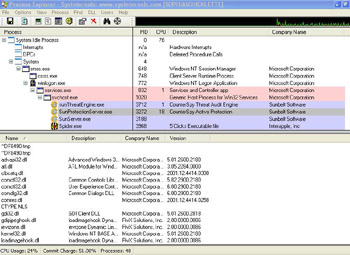
When you first open Process Explorer, you see a window divided into two sections, or panes (see Figure 2.1).
The upper pane shows a process tree composed of all active processes and their children. A child is a process that is called during execution of its parent process. The same process can be a child to another process in the tree and the parent of a process that it calls during its own execution. The processes aligned along the leftmost border of the upper pane have no parents. The root of the process tree is the system idle process and all processes descend vertically from there. The children of a given process appear below the parent in an indented fashion. By default, the upper pane shows the processes from all users, but you can toggle this by selecting View Show Processes from All Users on the menu.
Figure 2.2 is a key to the color-coding scheme that Process Explorer uses. You can change the colors if you want, by clicking Options Configure...