Deploying Linux on the Desktop

Looking at real world requirements and implementations, this book gives Administrators and their Management the tools necessary to implement and understand a Corporate Desktop using Linux.
 TABLE OF CONTENTS
 CrossOver Office is easy to install, and there are two methods by which it can be installed: system-wide and user mode. System-wide installation is useful if everyone who logs into the system will use the exact same programs. It is also very useful from a maintenance and control perspective.
CrossOver Office is installed via RPM on most systems.
rpm -ivh crossover-pro-4.0.1.i386.rpm
CrossOver Office provides its own graphical interface for installing Windows programs into its Wine implementation. For example, here is a simple installation of mIRC.
Launch the tool by selecting Red Fedora->CrossOver Tools->Office Setup to bring up the installation tool (Figure A.1)
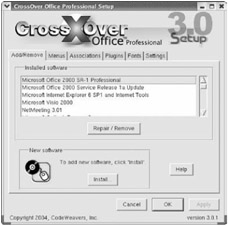
Clicking the Install button will bring the installation screen up (Figure A.2).
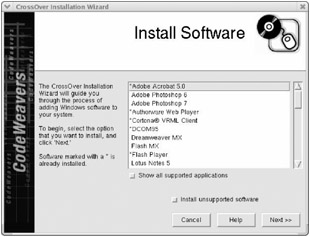
Check the Install unsupported software box and click Next >> (Figure A.3).
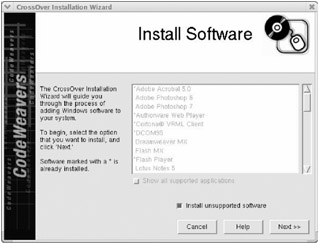
Now, specify the full path to the installation executable for the mIRC program (Figure A.4).
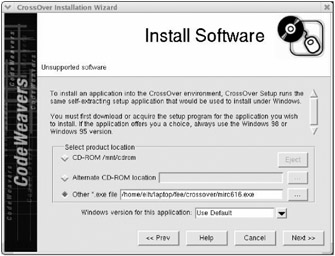
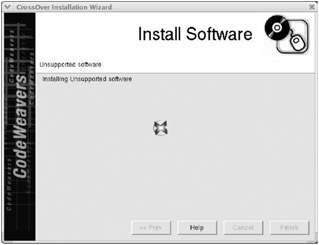
The standard mIRC screens will appear while the CrossOver Office Setup dialog waits for a clean installation of the program (Figure A.5).
Once the installation is complete, CrossOver Office will bring the Setup dialog back to the first screen, showing the newly installed program.