Engineering Analysis with ANSYS Software

APPENDIX: PROCEDURES FOR CREATING STEPPED BEAMS

A3.1 CR EATION OF A STEPPED BEAM

A stepped beam as shown in Figure P3.6 can be created by adding two rectangular areas of different sizes:

  1. Create two rectangular areas of different sizes, say 50 mm by 20 mm with WP X= 50 mm and WP Y= ?10 mm, and 60 mm by 10 mm with WP X= ?10mm and WP Y= ?10mm, following operations described in 3.1.3.1.

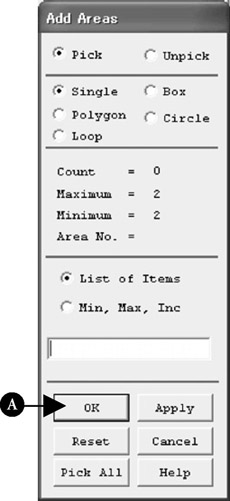
  2. Select the Boolean operation of adding areas as follows to open the Add Areas window (see Figure 3.46)

    <b class="bold">COMMAND  ANSYS Main Menu <span class="unicode">?</span> Preprocessor <span class="unicode">?</span> Modeling <span class="unicode">?</span> Operate <span class="unicode">?</span> Booleans <span class="unicode">?</span> Add <span class="unicode">?</span> Areas</b>
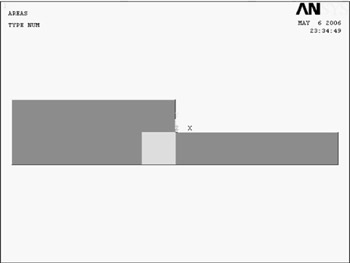
  3. Pick all the areas to add by the upward arrow.

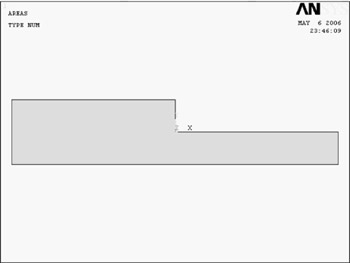
  4. The color of the areas picked turns from light blue into pink (see Figure 3.47). Click [A] OK button to add the two rectangular areas to create a stepped beam area as shown in Figure 3.48.


Figure 3.46: "Add Areas" window

Figure 3.47: Two rectangular areas of different sizes to be added to create a stepped beam area

Figure 3.48: A stepped beam area created by adding two rectangle areas

A3.1.1 HOW TO CANCEL THE SELECTION OF AREAS

Click Reset button or click the right button of the mouse to change the upward arrow to the downward arrow and click the area(s) to pick. The color of the unpicked area(s) turns pink into light blue and the selection of...

UNLIMITED FREE
ACCESS
TO THE WORLD'S BEST IDEAS

SUBMIT
Already a GlobalSpec user? Log in.

This is embarrasing...

An error occurred while processing the form. Please try again in a few minutes.

Customize Your GlobalSpec Experience

Category: Waveplates and Retardation Plates
Finish!
Privacy Policy

This is embarrasing...

An error occurred while processing the form. Please try again in a few minutes.