Linux & OpenVMS Interoperability: Tricks for Old Dogs, New Dogs, and Hot Dogs with Open Systems

E-mail Server Configuration for OpenVMS

Let's set OpenVMS up as an Internet e-mail server (see Figures 6-1 through 6-36). We'll assume that TCP/IP is already set, as descussed in Chapter 3.


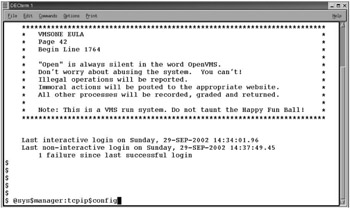
Figure 6-1: Login as SYSTEM.

Figure 6-2: Run the TCP/IP Setup menu in SYS$MANAGER.

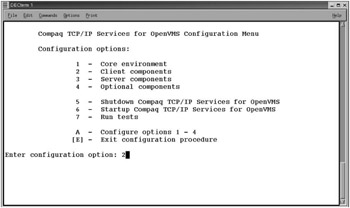
Figure 6-3: Choose menu option 2 for TCP/IP client changes.

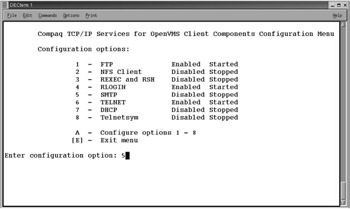
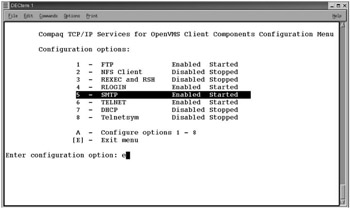
Figure 6-4: From the submenu choose option 5 to activate TCP/IP SMTP mail services.

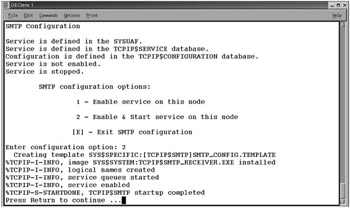
Figure 6-5: Menu choice 2 activates SMTP for this OpenVMS system.

Figure 6-6: Exit and return to the main TCP/IP menu.

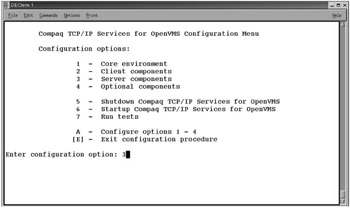
Figure 6-7: Choose the Server Components menu option.

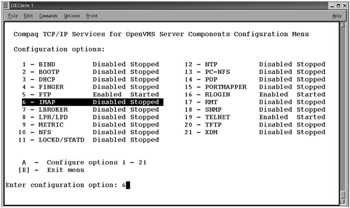
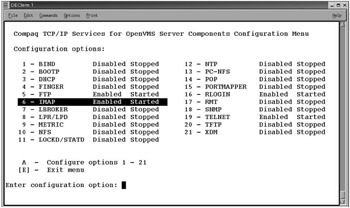
Figure 6-8: Choose IMAP protocol to configure.

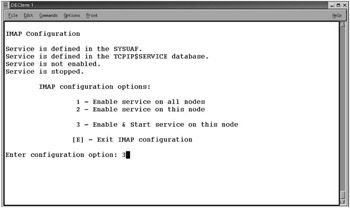
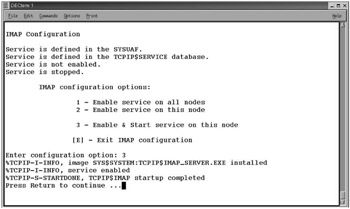
Figure 6-9: Select 3 to activate and start IMAP services for this OpenVMS system.

Figure 6-10: Exit and return to the TCP/IP main menu.

Figure 6-11: Note that the IMAP service is now enabled and started on this system.

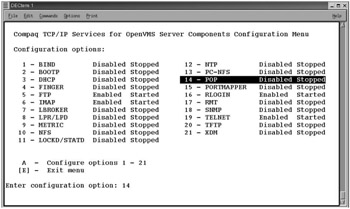
Figure 6-12: Now choose the POP protocol.

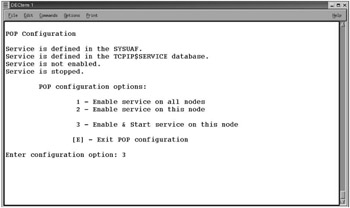
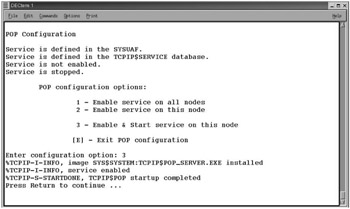
Figure 6-13: Choose to enable and start POP3 protocols on this OpenVMS system.

Figure 6-14: Return to the OpenVMS TCP/IP Service Configuration menu.

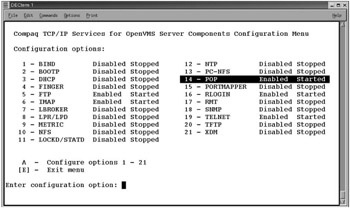
Figure 6-15: Verify that the POP3 protocol is enabled and running on this system.

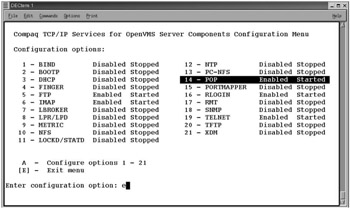
Figure 6-16: Exit and return to the main TCP/IP Configuration menu.

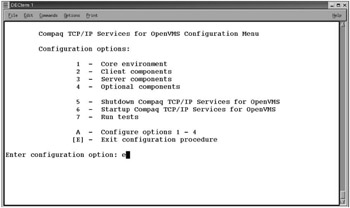
Figure 6-17: Exit the TCP/IP Configuration menu and return to a $ DCL prompt.

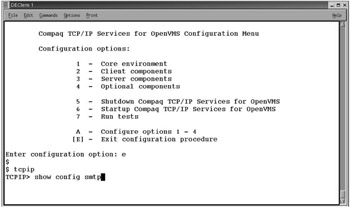
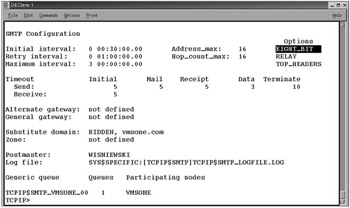
Figure 6-18: Invoke the TCP/IP manager utility and show the SMTP configuration.

Figure 6-19: Note that SMTP options are set to eight-bit (to allow 8-bit ASCII), relay to allow POP and IMAP clients to send mail through...

UNLIMITED FREE
ACCESS
TO THE WORLD'S BEST IDEAS

SUBMIT
Already a GlobalSpec user? Log in.

This is embarrasing...

An error occurred while processing the form. Please try again in a few minutes.

Customize Your GlobalSpec Experience

Category: E-Mail Software
Finish!
Privacy Policy

This is embarrasing...

An error occurred while processing the form. Please try again in a few minutes.