AutoCAD : Professional Tips and Techniques

What follows is grab bag of tips and tricks that we hope you'll enjoy. Maybe you'll learn a few helpful tips about commands you use every day, or some novel tricks that you'll use occasionally when the need arises.
Arcs are some of the most complex 2D objects you can make in AutoCAD. At last count, you can draw an arc 11 different ways. Many of these methods have in common the unwritten rule and here we go writing it that arcs must be created in counterclockwise fashion.
Even if this rule has beaten you into submission over your years of using AutoCAD, you must harbor some resentment at the sheer inflexibility of said rule. We've come to announce a way out, a secret method to subvert the rule and draw arcs the way you've always wanted to clockwise. Follow along if you dare to be different:
Use the UCS command. Yes, you must trick AutoCAD into drawing backward to successfully draw arcs clockwise. Sad but true.
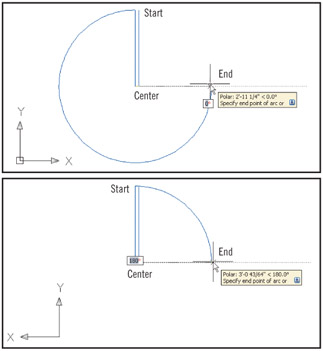
Use the Y option to rotate the coordinate system about the vertical axis. Type 180, and press Enter again to complete the transformation.
Draw your arc with the Center option, and then click Start and End points in a clockwise relationship. The arc follows as you want it to perfect for door swings!

Don't forget to set UCS back to World if you want to draw "normally" again. These steps are...