In this chapter, you will start learning how to use MATLAB to do mathematics. You should read this chapter at your computer, with MATLAB running. Try the commands in a MATLAB Command Window as you go along. Feel free to experiment with variants of the examples we present; the best way to find out how MATLAB responds to a command is to try it.
| Note | For further practice, you can work the problems in Practice Set A. The Glossary contains a synopsis of many MATLAB operators, constants, functions, commands, and programming instructions. |
Input and Output
You input commands to MATLAB in the MATLAB Command Window. MATLAB returns output in two ways: Typically, text or numerical output is returned in the same Command Window, but graphical output appears in a separate graphics window. A sample screen, with both a MATLAB Desktop and a graphics window, labeled Figure No. 1, is shown in Figure 2-1.
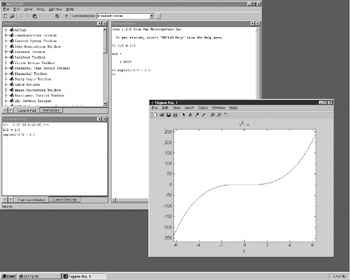 Figure 2-1: MATLAB Output.
 To generate this screen on your computer, first type + ?. Then type ezplot( x ?3 ? x ).
| Tip | While MATLAB is working, it may display a "wait" symbol for example, an hourglass appears on many operating systems. Or it may give no visual evidence until it is finished with its calculation. |
Arithmetic
As we have just seen, you can use MATLAB to do arithmetic as you would a calculator. You can use " +" to add, " -" to subtract, " *" to multiply,...
Copyright B. Hunt, R. Lipsman, J. Rosenberg, K. Coombes, J. Osborn, G. Stuck 2001 under license agreement with Books24x7


 TABLE OF CONTENTS