In this chapter, you will start learning how to use MATLAB to do mathematics. We recommend that you read this chapter while running MATLAB. Try the commands as you go along. Feel free to experiment with variants of the examples we present; the best way to find out how MATLAB responds to a command is to try it.
| Cross-Reference | For further practice, you can work the problems in Practice Set A . You may also consult the Glossary for a synopsis of many MATLAB operators, constants, functions, commands, and programming instructions. |
Input and Output
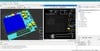
You input commands to MATLAB in the Command Window. MATLAB returns output in two ways: typically, text or numerical output is returned in the same Command Window, but graphical output appears in a separate figure window. A sample screen, with both a MATLAB Desktop and a figure window, labeled Figure 1 , is shown in Figure 2.1. To generate this screen on your computer, first type 1/2 + 1/3. Then type ezplot('x^3- x').
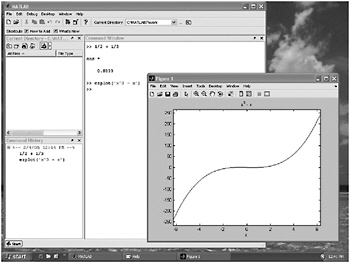 Figure 2.1: MATLAB Windows.
 | Tip | While MATLAB is working, it may display a wait symbol for example, an hourglass appears on many operating systems. Or it may give no visual evidence until it is finished with its calculation. |
Arithmetic
As we have just seen, you can use MATLAB to do arithmetic as you would a calculator. You can add with +, subtract with -, multiply with *, divide with /, and exponentiate with ^.
Copyright B.Hunt, R.Lipsman, J.Rosenberg, K.Coombes, J. Osborn, and G.Stuck 2006 under license agreement with Books24x7


 TABLE OF CONTENTS