Google Talking

Chapter 4: Google Talk Usage

Using Google Talk

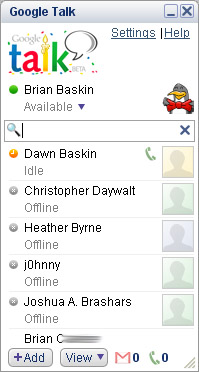
So you ve just installed Google Talk. Good for you! Now let s spend a few moments getting your client all set up and ready for you to be able to chat with your friends and family. One of Google Talk s greatest features is its simplicity. As is the case with nearly every product that Google has created or endorsed, Google Talk was designed to be very straightforward and easy to use, and it features an extremely clean interface, as shown in Figure 4.1. We ll begin with how to add your friends to your contact list and how to remove your friends who have turned into enemies. This section will also touch on how to change your Google Talk status to let others know if you re away or just jamming to music.


Figure 4.1: Google Talk Main Screen

Your Contact List

Now that Google Talk is installed, let s chat. Oh, but you can t chat with yourself (much to the chagrin of the neurotic); you first have to add contacts to chat with. Luckily, Google Talk s contact list is closely related to your Google Mail (Gmail) address book, which will likely reduce the number of contacts you might otherwise have to add. Normally, you would need to add each individual friend who you communicate with to your contact list and have them add you in return. However, Google Talk will automatically parse through contacts from your Gmail account and add them to your contact list. In situations where you have...

UNLIMITED FREE
ACCESS
TO THE WORLD'S BEST IDEAS

SUBMIT
Already a GlobalSpec user? Log in.

This is embarrasing...

An error occurred while processing the form. Please try again in a few minutes.

Customize Your GlobalSpec Experience

Category: Tablet Computers
Finish!
Privacy Policy

This is embarrasing...

An error occurred while processing the form. Please try again in a few minutes.