Microsoft Outlook Programming: Jumpstart for Administrators, Power Users, and Developers

Unleash the power of MS Outlook to cutomize and use macros and templates for programs like Excel and Word, and more.
 TABLE OF CONTENTS
 This chapter gets you started with Outlook forms. You will take a guided tour of the six main built-in forms. This will give you an idea of which form would be the best fit for a particular project.
The highlights of this chapter include discussions of the following:
How to start and end an Outlook forms design session
Where to find forms you can use as models
What information each form can store
How to get help with forms design
Where to save finished forms
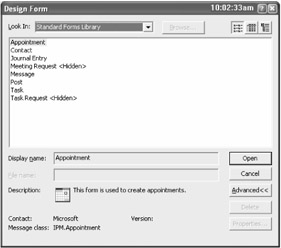
Every Outlook form starts from another Outlook form, rather than from a blank page. To start designing an Outlook form, choose Tools, Forms, Design a Form from the main Outlook menu. The Design Form dialog box shown in Figure 15.1 appears, listing the forms in the Standard Forms Library. This library holds the six basic forms that appear when you click the New button in any Outlook folder, as well as two hidden forms Outlook uses for meeting invitations and task assignments.
Select the form you want to use as the basis for your new form (for example, the...