At the end of each encoding session, Windows Media Encoder asked if you wanted to save your settings in a session file, which has the " .wme" extension. It's not necessary to save the session created through a wizard, because the settings are created automatically.
However, if you modify settings created in a wizard to suit some specific needs, saving the session will save the headache of recreating the same parameters again and again. A customized session file can be used repeatedly in similar circumstances.
The following section looks at how to customize a session for specific needs and reuse over time.
If you have saved a session, open the session file by clicking File ? Open and selecting the appropriate file with the .wme extension. Then click the Properties button, which opens the Properties panel.
If you have not saved a session, click the New Session button and select "Custom session" from the Wizards tab. The Properties panel opens automatically, as shown in Figure 6-11.
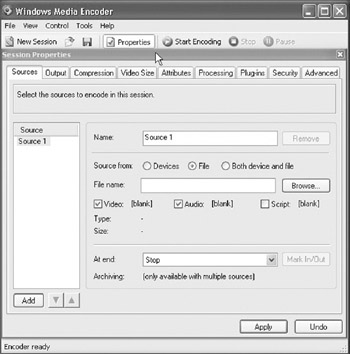 Figure 6-11: The Session Properties panel.
 The following sections explain many of the options available for customizing an encoding session. Again, to keep things simple, the section assumes that you are encoding a source WAV or AVI for on-demand delivery via a streaming media server.
Sources You can encode from one or more sources in a single encoding session. For example, if you want to apply the same encoding parameters to a...


 TABLE OF CONTENTS