How to Cheat at Configuring VmWare ESX Server

Chapter 3: Creating Virtual Machines and Gold Images

Creating Virtual Machine Templates

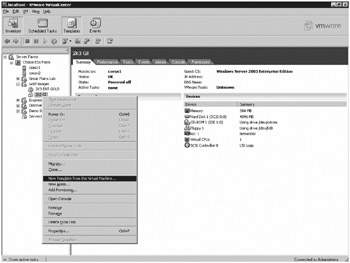
  1. To create a Template right-click the virtual machine that will be used as a template and choose New Template from this Virtual Machine (See Figure 3.1.)


    Figure 3.1: Creating a New Template

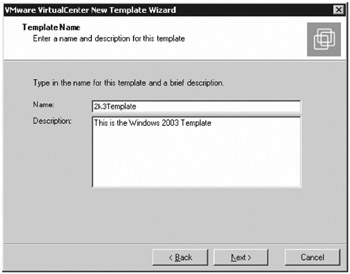
  2. Enter the name for the template, give the template a description, and click Next. (See Figure 3.2.)


    Figure 3.2: Entering Description

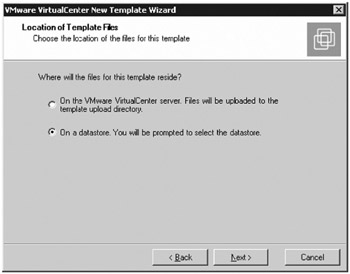
  3. Choose the second option on a datastore to store the template on a VMFS volume, and click Next. (See Figure 3.3.)


    Figure 3.3: Locating on a Datastore

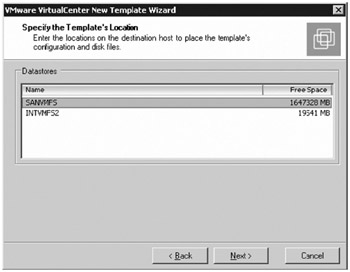
  4. Choose the VMFS volume where the template will be stored, and click Next. (See Figure 3.4.)


    Figure 3.4: Choosing the Volume

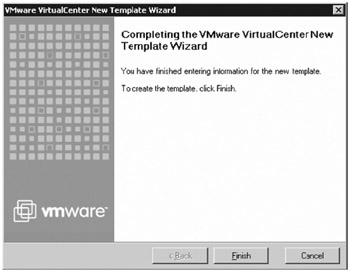
  5. Click Finish. (See Figure 3.5.)


    Figure 3.5: Completing the Template Wizard

Deploying Virtual Machines from Templates

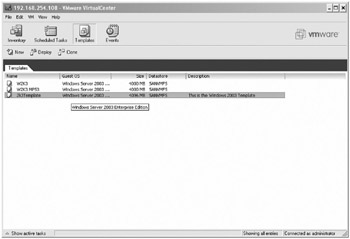
  1. From the VirtualCenter console choose Templates from the toolbar, right click on the template that is to be deployed, and choose Deploy Virtual Machine from this template (See Figure 3.6.)


    Figure 3.6: Deploying the Virtual Machine

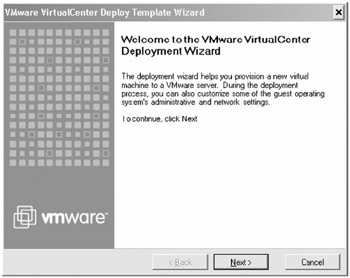
  2. Click Next. (See Figure 3.7.)


    Figure 3.7: Welcome to the Deployment Wizard

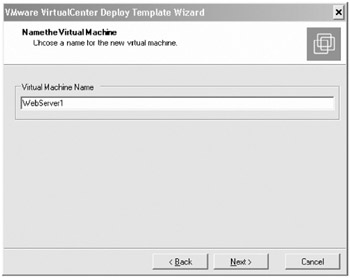
  3. Give the virtual machine a name, this will be the name that will show up in VirtualCenter, and click Next. (See Figure 3.8.)


    Figure 3.8: Naming the Virtual Machine

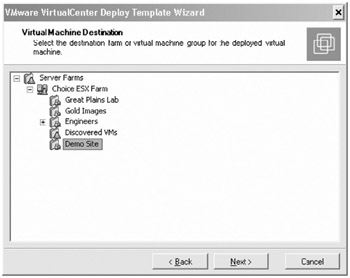
  4. Choose what virtual machine group that the server will belong to, and click Next. (See Figure 3.9.)


    Figure 3.9: Assigning the Virtual Machine Group

  5. Choose the physical ESX server...

UNLIMITED FREE
ACCESS
TO THE WORLD'S BEST IDEAS

SUBMIT
Already a GlobalSpec user? Log in.

This is embarrasing...

An error occurred while processing the form. Please try again in a few minutes.

Customize Your GlobalSpec Experience

Category: Machine Fences, Stops, and Guides
Finish!
Privacy Policy

This is embarrasing...

An error occurred while processing the form. Please try again in a few minutes.