Wireshark & Ethereal Network Protocol Analyzer Toolkit, Jay Beale's Open Source Security Series

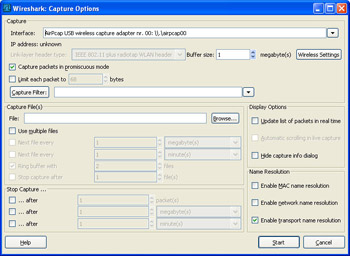
After specifying your capture preferences in the AirPcap Control Panel, start Wireshark and initiate a new packet capture by navigating to Capture Options. This opens the Wireshark capture options dialog box (see Figure 6.3).
Choose the AirPcap interface by selecting the drop-down box labeled Interface:, and then specify the desired capture options. Next, click Start to initiate the packet capture. Stop the capture after you have collected the desired amount of traffic by clicking on the Stop button, or go to Capture Stop in the capture dialog box.
At this point, you are capturing wireless traffic in monitor mode on Windows. Next comes the challenging part: extracting useful information from the packet capture contents. The following section examines the many Wireshark features that make this analysis easier.