Applied CATIA V.5 R15

Providing step-by-step instruction with numerous illustrations, this book offers a self-guided learning experience for users to learn CATIA V.5 R15 on their own with little or no outside help.
 TABLE OF CONTENTS
 Objectives:
Create a simple sketch using the Sketcher Workbench
Dimension a sketch using the Constraint command
Extrude a sketch in the Part Design Workbench using the Pad command
Create a hole in the Part Design Workbench using the Pocket command
Create a fillet in the Part Design Workbench using the Edge Fillet command
Create a counter bore in the Part Design Workbench using the Hole command
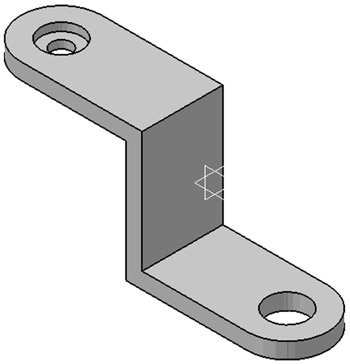
Chapter 1 includes instruction on how to design the part shown below.
Start CATIA V5 by moving the cursor to the  button in the lower left corner of the screen. Click the left mouse button once.
A pop up menu of the programs that are installed on the computer will appear. Scroll through the list of programs until you find CATIA V5 R15.
Move the cursor over CATIA V5 R15 and left click once.
CATIA V5 R15 will open (load up and begin running).
The CATIA startup banner will appear briefly as shown in Figure 2.
Your screen should look similar to Figure 3.
Move the cursor to the upper left portion of the screen and left click on Start. A drop down menu will appear. Left click on Mechanical Design. Another drop down menu will appear. Left click Sketcher as shown in Figure 4.
Move the cursor to the "yz plane" text located in the upper left corner of the screen. After the text is highlighted, left click once as shown in Figure 5.
CATIA V5 is...