AutoCAD LT 2006: The Definitive Guide


Notes
__________________________________________________
__________________________________________________
__________________________________________________
__________________________________________________
__________________________________________________
__________________________________________________
__________________________________________________
__________________________________________________
__________________________________________________
__________________________________________________
Starting AutoCAD LT
Becoming familiar with the user interface
Drawing lines
Understanding dynamic input
Reversing mistakes
Accessing online help
In this chapter, you learn how to start AutoCAD LT 2006, and tour the AutoCAD LT user interface. You also get your feet wet by placing a few lines in a new drawing.
Before starting AutoCAD LT, your computer must be running Windows 2000 or XP. If AutoCAD LT is not yet set up on your computer, do so first.

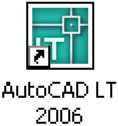
To start AutoCAD LT, double-click the AutoCAD LT icon found on the Windows desktop.
Buttons execute commands when clicked
Cursors provide feedback from Windows and AutoCAD LT
Flipscreen switches between the drawing and text windows
Flyouts buttons that hide additional toolbars
Icons pictorial representations of commands
Layouts define how drawings are plotted
Pickbox specifies the points being picked (selected)
Right-clicking press right mouse button to display context-sensitive menus
Toolbars collections of buttons
| Abbreviations | |
|---|---|
| Alt | Alt (or alternate) key |
| Ctrl | Ctrl (or control) key |
| F | Function keys |
| U | Undoes the last command or option |
| UCS | User-defined coordinate system |
| Commands | ||
|---|---|---|
| C ommand | Shortcut | MenuSelection |
| Help | ? or F1 | Help Help [*] |