AutoCAD LT 2006: The Definitive Guide

Creating new toolbars
Customizing toolbar button icons
Writing toolbar macros
Understanding workspaces
AutoCAD LT represents many of its commands through icons on buttons collected into toolbars. Click a button, and AutoCAD executes the underlying command (and sometimes two or more commands) known as a macro. When you pause the cursor over the button's icon, it displays a tooltip, which briefly explains the icon's purpose. At the same time, the status line displays a sentence-long description of the button's purpose.
AutoCAD LT lets you change just about anything related to the toolbars:
The macros (commands) executed by buttons
The look of buttons' icons
The toolbars to which buttons belong
The names of toolbars
The tooltips displayed by the buttons
The help text displayed on the status line
The CUI command does all this.
Icons images on toolbar buttons
Toolbars collection of buttons
Tooltips descriptive text for buttons
Workspaces customized user interfaces
Tools Options
While the CUI command customizes toolbars, it is the Options command that changes the properties of toolbars. (Prior to AutoCAD LT 2006, these options were found in the Customize command.)
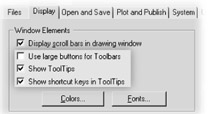
From the Tools menu, select Options. If necessary, select the Display tab.

In the upper-left corner is the Window Elements area.
Three options apply to toolbars:
Use large buttons for Toolbars when off, "normal" buttons are shown; when on, larger...