Adobe Acrobat and PDF for Architecture, Engineering, and Construction
In many circumstances, it is important that a signature field added to a document is converted to a read-only field after signing.
You can define the action for the field by following these steps:
Follow the previous set of steps to draw and configure the field.
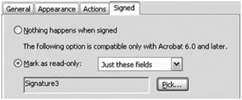
Click the Signed tab in the Digital Signatures Properties dialog box.
Click the Mark as read-only radio button, and choose Just these fields from the drop-down list.
Click Pick to open a list of the fields in the Field Selection dialog box.
Select the fields you want to define as read-only and click OK to close the dialog box. The fields selected are listed on the Digital Signature Properties dialog box (Figure 10.14).
Click OK to close the Digital Signature Properties dialog.