Configuring and Troubleshooting Windows XP Professional
Learn and master how to configure and troubleshoot Windows XP Professional.
 TABLE OF CONTENTS
 While working on your system, you will create a slew of files you no longer need, but which will contaminate your volumes. These files will not only occupy valuable disk space, but they will also contribute to the fragmentation of the volumes and will slow down file lookups. Therefore, you should clean up these unusable files before performing a defragmentation.
To clean up your files, you will use Disk Cleanup, which you can find in Start All Programs Accessories System Tools. You can also start Disk Cleanup from Windows Explorer:
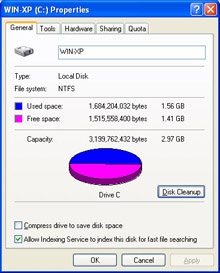
Right-click the volume you want to clean up and select Properties.
Click Disk Cleanup at the right of the Capacity pie (see Figure 5.8).
A third way to start this tool is by running the program cleanmgr from Start Run.
Even though Disk Cleanup is a simple tool, it is invaluable. It will check all the known places where these temporary and forgotten files hang out and determines how much volume space they take up. It will present you with a list with categorized dispensable files. The best way to understand the workings of this tool is to take a walk through the execution of Disk Cleanup:
Start the Disk Cleanup by choosing Start All Programs Accessories System Tools. If you have more than one disk volume, you will see the Select Drive...