Configuring and Troubleshooting Windows XP Professional

Learn and master how to configure and troubleshoot Windows XP Professional.
 TABLE OF CONTENTS
 As you use your system, you will have to perform the same tasks over and over again. If such a task can run unattended, you can schedule that task at a time when it does not interfere with your work and does not stress the computer while you are using it. Another advantage is that once you add a job to the list, it will automatically run, without you having to remember to run it manually. Of course, it is good practice to regularly check to see if these jobs produced any errors. An example of a job you can run unattended is the command-line utility defrag. You can make sure that this utility will be run every week at a particular time, assuming you have the computer up and running at that time. To schedule defrag, you may want to create a batch script to run one or more subsequent defragmentations.
You can start Scheduled Tasks from All Programs Accessories System Tools, which will open an Explorer window (see Figure 5.21). The right pane shows all scheduled tasks and an Add Scheduled Task Wizard at the top of the list.
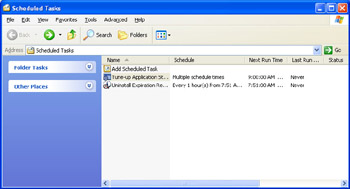
You maintain Scheduled Tasks in an Explorer window because every task is a file with a special file type that is identified with the extension .job. These jobs are located in the folder C:\WINDOWS\TASKS (assuming that you do not...