Creating Motion Graphics with After Effects Volume 1: The Essentials, 2nd Edition

Learn how After Effects works and get firsthand experience with the features award-winning artists use.
 TABLE OF CONTENTS
 The ability to group layers together greatly eases the creation of complex animations.
Parenting allows you to group layers together and to treat them as one object. Any Position, Scale, or Rotation transformations applied to the parent are passed on to its children. Meanwhile, the children can still have their own animations, even as they get dragged around by the parent. Parenting can be used for anything from moving two layers at the same time to setting up complex coordinated animations.
Parenting, for the most part, works as you intuitively expect it should. After going over the basics, we'll focus on the creative applications of Parenting. But there may come a time when you wonder why properties and keyframes are jumping to new values that don't seem to make sense, or why a child moves in an unexpected way. For a deeper understanding of what's going on when you parent or unparent a layer, see the sidebar Parenting: Under the Hood, which appears later in this chapter.
| Tip | Hide the Parent Press Shift+F4 to show or hide the Parent panel. |
Before opening this chapter's Example Project file, be sure to install the Fast Blur effect from Digital Film Tools included free on the CD.
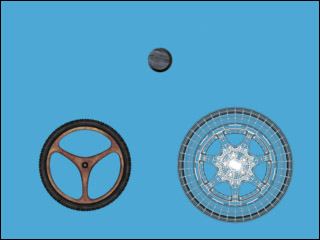
There are two ways to parent one...