Creating Motion Graphics with After Effects Volume 1: The Essentials, 2nd Edition

Learn how After Effects works and get firsthand experience with the features award-winning artists use.
 TABLE OF CONTENTS
 Procedures and shortcuts for setting up a blank canvas.
Our goal in this chapter is to show you how to create a composition, add source footage as layers, and navigate in both space and time. Mastering these basic concepts, techniques, and shortcuts will prepare you for creating an animation in the next chapter. We'll also cover safe area, grid, guide, and ruler overlays in the Composition window, and the all-important subject of how to preview your work. Even if you're a more experienced user, you should skim this chapter to see if there are any navigation shortcuts or tips you've been missing out on.
If you're new to After Effects, we suggest you start with Chapter 1, where many of these concepts are introduced in a step-by-step tutorial that gives you a flavor for the main features (and power) of After Effects.
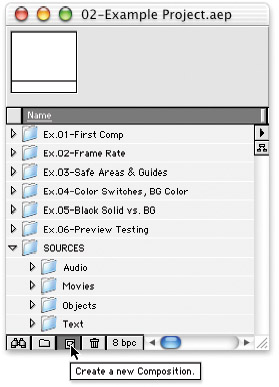
Explore the 02-Example Project.aep file as you read this chapter; references to [Ex.##] refer to specific compositions within the project file.
In After Effects, the composition ("comp" for short) is where you layer your source material, position and size the sources on your virtual canvas, and navigate through time. Open the accompanying 02-Example Project.aep project file from this book's CD (open the Chapter Example Projects folder, then the 02-Example Project folder). In the Project window, click on...