AutoCAD 2007 and AutoCAD LT 2007: No Experience Required

Setting Up Text Styles

In AutoCAD, a text style consists of a combination of a style name, a text font, a height, a width factor, an oblique angle, and a few other, mostly static settings. You specify these text style properties with the help of a dialog box that opens when you start the Style command. You'll begin by setting up two text styles one for labeling the rooms in the floor plan and the other for putting titles on the two views. You'll need a new layer for text:

  1. Open the Cabin09c drawing.

  2. Create a new layer named Text1. Assign it a color, and make it current.

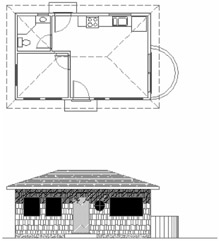
  3. Freeze the Hatch-plan-floor and Hatch-plan-wall layers. Be sure all other layers are thawed and turned on. Your drawing should look like Figure 10.1.


Figure 10.1: The Cabin09c drawing with the Hatch-plan-floor and Hatch-plan-wall layers frozen

Text and Drawing Scale

When you set up text styles for a drawing, you have to determine the height of the text letters. To make this determination, you first need to decide the scale at which the final drawing will be printed.

In traditional drafting, you can ignore the drawing scale and set the actual height of each kind of text. This is possible because, although the drawing is to a scale, the text doesn't have to conform to that scale and is drawn full size.

In AutoCAD, a feature called layouts makes it possible to set the height of text in the same way that...

UNLIMITED FREE
ACCESS
TO THE WORLD'S BEST IDEAS

SUBMIT
Already a GlobalSpec user? Log in.

This is embarrasing...

An error occurred while processing the form. Please try again in a few minutes.

Customize Your GlobalSpec Experience

Category: Drawing Software
Finish!
Privacy Policy

This is embarrasing...

An error occurred while processing the form. Please try again in a few minutes.