AutoCAD 2007 and AutoCAD LT 2007: No Experience Required

Setting up a dimension style
Dimensioning the floor plan of the cabin
Modifying existing dimensions
Modifying existing dimension styles
Dimensions are the final ingredient to be added to your drawing. To introduce you to dimensioning, I'm going to follow a pattern similar to the one I used in the previous chapter on text.
Dimension styles are similar to text styles but are more complex. You set them up in the same way, but many parameters control the various parts of dimensions, including the dimension text.
Before you start setting up a dimension style, you need to make a few changes to your drawing to prepare it for dimensioning:
Open Cabin10c, and zoom in to the upper half of the drawing.
Create a new layer called Dim1. Assign it a color, and make it current.
Freeze the Grid layer.
Set Endpoint Osnap to be running.
Set the status bar so that only the Osnap and Model buttons are in the on position.
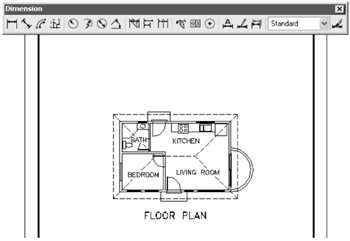
Right-click any button on any toolbar on the screen to display the toolbar menu. Click Dimension to open the Dimension toolbar on the drawing area in the form of a floating toolbar.
Move the Dimension toolbar to the top center of the drawing area, being careful to avoid docking it. (You learned about moving toolbars around on the screen in Chapter 1.) Your drawing will look like Figure 11.1.