Microsoft Outlook 2000 E-mail and Fax Guide
A tutorial and reference for advanced users and administrators.
 TABLE OF CONTENTS
 Outlook stores items in a hierarchy of folders and offers a number of ways to view and work with those folders and the items they contain. In this chapter, you'll learn about the different types of folders, how to customize the way you view each one, and how to work with the items in the folders.
In addition to working with folders and the items in them, we'll also show you how to configure the Outlook Bar to get quick access to the Outlook information you use most.
Take a look at Figure 12-1. This is the way Outlook normally appears when you first open it. Items in the current folder in this case the Inbox folder appear in the large pane on the right, called the Viewer. A preview pane at bottom-right shows the contents of the current item. The strip on the left, containing icons for the Inbox and other folders, is called the Outlook Bar. It's a collection of shortcuts to your favorite folders both Outlook folders and system folders. We spend time later in the chapter working with the Outlook Bar.
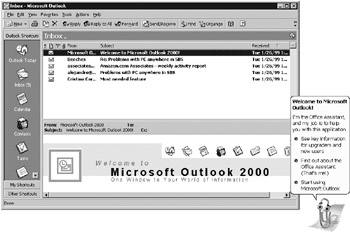
At the top of the window are the standard Windows-style menu and toolbar.
That's the "classic" Outlook configuration. Figure 12-2 shows a common variation...