Microsoft Outlook 2000 E-mail and Fax Guide
A tutorial and reference for advanced users and administrators.
 TABLE OF CONTENTS
 In the previous chapter, we explored Outlook's techniques for sending and receiving messages. Now let's look at your Inbox and see how you can respond to those incoming messages. We'll also examine some of the safeguards Outlook offers against potentially harmful message content.
New messages appear in the Inbox folder view in bold type with a closed envelope icon. Messages you have read are in normal type with an open envelope icon.
If the Preview Pane is active (see "Understanding the Preview Pane" in Chapter 12), you can press the space bar to move down the list of messages, viewing each one in the Preview Pane.
To read a message in its own window, double-click it, or select it and press Enter. The message window that appears (Figure 15-1) is similar to that used to compose new messages, but with the formatting toolbar turned off. To open several messages at once, select the messages in the Viewer by holding down the Ctrl key, then press Enter, or choose File, Open.
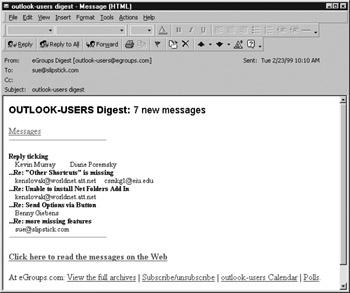
Instead of a Send button, the message window's toolbar includes buttons for Reply, Reply to All, and Forward. Two other new buttons let you browse through other messages in the same message window without returning to the Viewer. The large up arrow opens the previous item, while the large down arrow opens the next item. Click the small arrow next to each...