AutoCAD Pocket Reference, 2008 Edition

Section 11: Text

CREATING NEW TEXT STYLES

AutoCAD provides you with only one Text Style named "Standard". You may want to create a new text style with a different font and effects. Steps 1 through 8 below will guide you through the process.

  1. Select the TEXT STYLE command using one of the following:

    • TYPE = STYLE or ST

    • PULLDOWN = FORMAT / TEXT STYLE

    • TOOLBAR = FORMAT

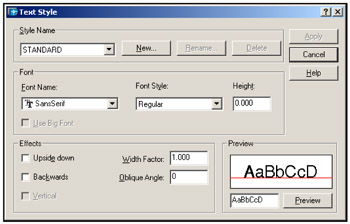
    The TEXT STYLE dialog box below should appear.

The information in this dialog box is a description of the Text Style highlighted in the Style Name box.

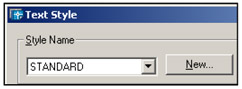
  1. Select the NEW button.

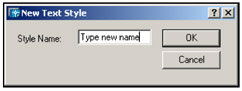
  2. Type the new style name in STYLE NAME box. Then select the OK button.

    Text Styles can have a maximum of 31 characters, including letters, numbers, dashes, underlines and dollar signs. You can use Upper or Lower case.

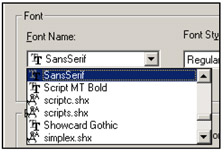
  3. Select the FONT.

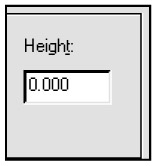
  4. Enter the value of the Height. (If the value is 0, AutoCAD will always prompt you for a height. If you enter a number the new text style will have a fixed height and AutoCAD will not prompt you for the height)

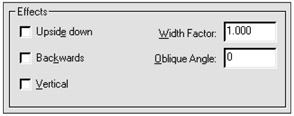
  5. Assign EFFECTS.

UPSIDE-DOWN

Each letter will be created upside-down in the order in which it was typed. (Note: this is different from rotating text 180 degrees.)

BACKWARDS

The letters will be created backwards as typed.

VERTICAL

Each letter will be inserted directly under the other. Only .shx fonts can be used. VERTICAL text will not display in the PREVIEW box.

OBLIQUE ANGLE

Creates letter with...

UNLIMITED FREE
ACCESS
TO THE WORLD'S BEST IDEAS

SUBMIT
Already a GlobalSpec user? Log in.

This is embarrasing...

An error occurred while processing the form. Please try again in a few minutes.

Customize Your GlobalSpec Experience

Category: Industrial Keypads
Finish!
Privacy Policy

This is embarrasing...

An error occurred while processing the form. Please try again in a few minutes.