AutoCAD Pocket Reference, 2008 Edition

Section 9: Plotting

BACKGROUND PLOTTING

Background Plotting allows you to continue to work while your drawing is plotting. This is a valuable time saver because some drawings take a long time to plot. Or maybe you have multiple drawings to plot and you do not want to tie up your computer.

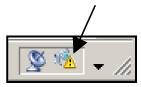
If you wish to view information about the status of the plot, click on the plotter icon located in the lower right corner of the AutoCAD window.

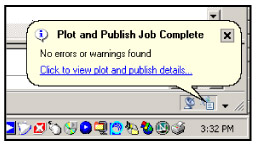
When the plot is complete, a notification bubble will appear.

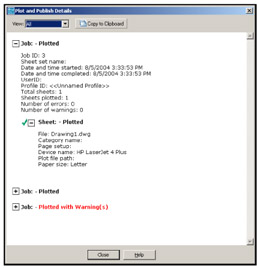
When you click on the "Click to view plot and publish details " , on the bubble, you will get a report like the one shown below. The report will list details about all of the drawings plotted in the current drawing session.

PLOTTING FROM MODEL TAB

  1. Important: Open the drawing you want to plot.

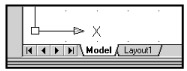
  2. Make sure that the Model tab is selected. (Model tab)

  3. Select: View / Zoom / All

  4. Select the Plot command by "right clicking" on the "Model" tab or using one of the following methods listed below:

    • Type = Print or Plot

    • Pulldown = File / Plot

    • Tool bar = Standard

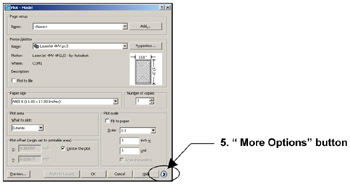
The Plot dialog box below should appear.

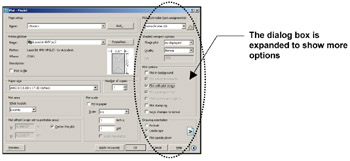
  1. Select the " More Options" button to expand the dialog box.

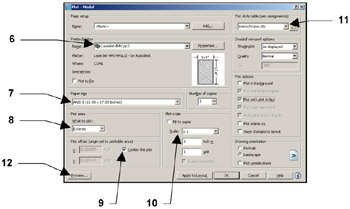
  2. Select a "Printer / Plotter" such as the LaserJet 4MV from the drop down list. Note: This Printer represents a size 17 X 11. If you do not find your printer in the drop down list, you need...

UNLIMITED FREE
ACCESS
TO THE WORLD'S BEST IDEAS

SUBMIT
Already a GlobalSpec user? Log in.

This is embarrasing...

An error occurred while processing the form. Please try again in a few minutes.

Customize Your GlobalSpec Experience

Category: Computer-Aided Design (CAD) Services
Finish!
Privacy Policy

This is embarrasing...

An error occurred while processing the form. Please try again in a few minutes.