AutoCAD Pocket Reference, 2008 Edition


The UCS icon is merely a drawing aid. You can control how it is displayed. It can be visible (on) or invisible (off). It can move with the Origin or stay in the default location. You can even change its appearance.
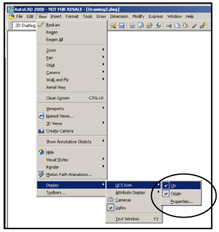
Select the following pull-down menu:
View / Display / UCS Icon

ON: A check mark beside the word ON means the UCS icon will be visible. Remove the check mark and the UCS icon will disappear. It will be very helpful to have the UCS Icon "On" most of the time. It displays where the Origin is located. ( Set to ON for the workbook exercises)
ORIGIN: A check mark beside the word Origin will move the UCS Icon with the Origin each time you move the Origin. Remove the check mark and the icon will not move. I find it very helpful to know where the Origin is at all times by merely looking for the UCS icon. ( Set to ON for the workbook exercises)
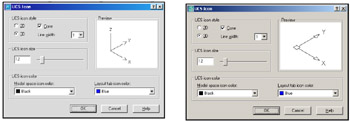
PROPERTIES: This setting allows you to change the appearance of the UCS icon. When you select this option the dialog box shown below will appear. You may change the Style, Size and Color at any time. Changing the appearance is personal preference and will not affect the drawing or commands.
|
![]() | |
| AutoCAD | AutoCAD LT |
The ORIGIN is where the X, Y, and Z axes intersect. The Origin's (0,0,0) default...