Introducing 3ds Max 2008

The Material Editor is the central place in 3ds Max where you do all of your material creation and editing. You create materials to assign to any single or group of objects in the scene. You can also have different materials assigned to different parts of the same object. In a full scene, it's customary to have many different materials

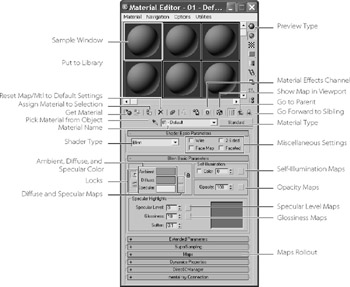
It is wise to get to know how the Material Editor works first, and then get to know the types of materials and shaders in 3ds Max. Open the Material Editor by choosing Rendering ? Material Editor or by pressing the keyboard shortcut M. Figure 7.4 shows the Material Editor and its major parts.
The following list describes the functions of the Material Editor:
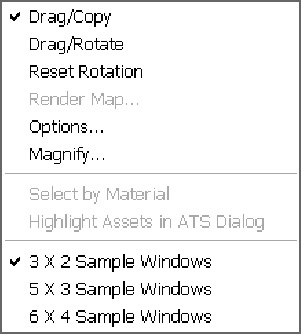
Sample Slot. The sample slot provides you with a quick preview of your material. Each material is displayed on a sphere in one of the tiles (or slots) you see in the Material Editor dialog. Right-clicking on any of the materials will give you a few more options, including the ability to change how many sample tiles you can see in the Material Editor (as shown here). The fewer samples, the quicker the Material Editor will load.
Get Material. This button brings up the Material/Map browser. Here you can browse from the scene or from a Material Library. The Material Library stores a collection of saved materials that you can bring into the current scene.