Introducing 3ds Max 2008

By now you've noticed that the Material/Map browser has different maps you can access. These maps are divided into categories.
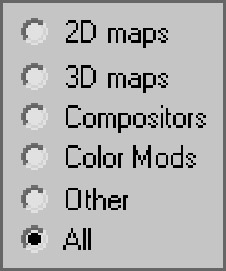
You've already used the bitmap map a few times. Let's take a look at the rest of the maps by category. Open the Material/Map browser. The categories are listed on the left. By default, All is selected as shown here.

The categories and their more important maps are explained in the following sections.
2D maps are two-dimensional images that are typically mapped onto the surface of geometric objects or used as environment maps to create a background for the scene. The simplest 2D maps are bitmaps; other kinds of 2D maps are generated procedurally.
Procedural maps are generated entirely within 3ds Max and rely on a set of parameters you set for their look. Images brought in the way the pool ball's color and reflection maps were brought in are not procedural maps. They are bitmaps that is, raster image files. For more on raster image files, see Chapter 1.
Click on the 2D Maps category in the Material/Map browser to see the available 2D maps.
As you've already seen, a bitmap is an image file that you load into 3ds Max. It can be a photo, a scan, or any image that is readable by 3ds Max.
A procedural map, the checker map is a checkerboard pattern that is generated in 3ds Max. Its parameters in the Material Editor, which are...