Introducing 3ds Max 2008

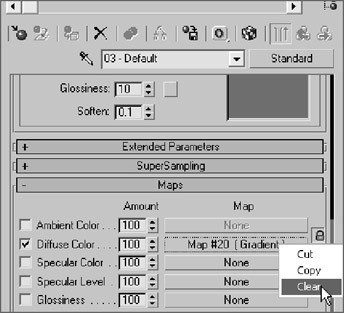
Now that you know how to add maps to a material, removing them is very simple. In the Material Editor for the parent material's parameters (not the map's parameters), you can right-click on the map name, as shown in Figure 7.47, to select Clear from the context menu.
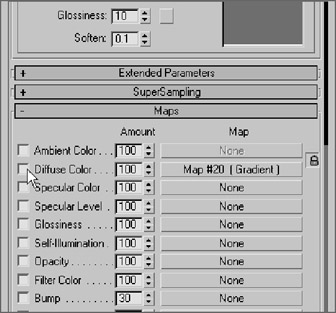
If you don't want to clear the map entirely, but just need to turn it off for a little while, you can just uncheck the box to the left of the parameter name, as shown in Figure 7.48. Check it back on to use that map again.
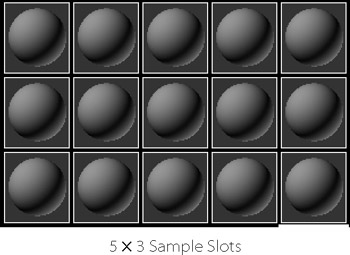
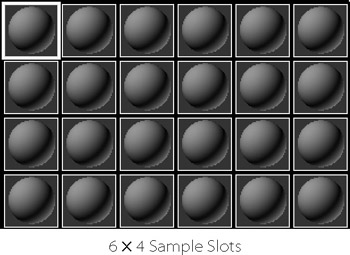
If you have a scene with several materials, and you need to see more sample slots than the default in the Material Editor, simply right-click on any slot and select either 5 3 Sample Windows or 6 4 Sample Windows from the context menu. This will help you navigate a heavy scene that has tons of materials that you need to modify. In the following graphics, you can see the sample slots multiply!
Here's what 5x3 Sample Windows looks like.

And here's what 6x4 Sample Windows looks like.


As you've seen, the sample slots for any given material in the Material Editor constantly update to show you any changes you've made to that material. However, if you want a...