Learning and Applying Autodesk Inventor 2008 Step-by-Step
Objectives:
Create a simple sketch using the Sketch Panel
Extrude a sketch into a solid using the Part Features Panel
Create an Orthographic view using the Drawing Views Panel
Create a Solid Model using the Edit Views command
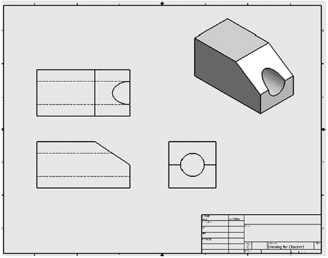
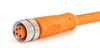
Chapter 3 includes instruction on how to design the parts shown below.

Start Autodesk Inventor 2008 by referring to "Chapter 1 Getting Started".
After Autodesk Inventor 2008 is running, begin a new sketch.
Move the cursor to the upper left corner of the screen and left click on Line as shown in Figure 1.
Move the cursor somewhere in the lower left portion of the screen and left click once. This will be the beginning end point of a line as shown in Figure 2.
Move the cursor to the right and left click once as shown in Figure 3.
Move the cursor upward and left click once as shown in Figure 4.
Move the cursor to the left, wait for the dots to appear, then left click once as shown in Figure 5.
Move the cursor back to the original starting end point. A green dot will appear. Left click once. Your screen should look similar to Figure 6.
Move the cursor to the middle left portion of the screen and left click on General Dimension as shown in Figure 7.
After selecting General Dimension move the cursor over the bottom horizontal line until it turns red as shown in Figure 8. Select the line by left...