Learning and Applying Autodesk Inventor 2008 Step-by-Step
Chapter 1: Getting Started

Overview

Objectives:

  • Create a simple sketch using the Sketch Panel

  • Dimension a sketch using the General Dimension command

  • Extrude a sketch in the Part Features Panel using the Extrude command

  • Create a hole in the Part Features Panel using the Extrude command

  • Create a fillet in the Part Features Panel using the Fillet command

  • Create a counter bore in the Part Features Panel using the Hole command

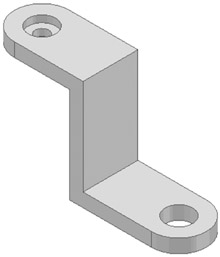
Chapter 1 includes instruction on how to design the part shown below.

  1. Start Inventor 10 by moving the cursor to the button in the lower left corner of the screen. Click the left mouse button once.

  2. A pop up menu of the programs that are installed on the computer will appear. Scroll through the list of programs until you find Autodesk Inventor Professional 2008.

  3. Move the cursor over Autodesk Inventor Professional 2008 and left click once.

  4. Autodesk Inventor Professional 2008 will open (load up and begin running).

  5. The Autodesk Inventor Professional 2008 startup banner will appear briefly as shown in Figure 2.

  6. The Open dialog box will appear. Left click on the white piece of paper located beneath the text "Quick Launch" as shown in Figure 3.

  7. Left click on the English tab at the upper left corner of the dialog box. After left clicking on the English tab, left click on Standard (in).ipt as shown in Figure 4.

  8. Left click on OK.

  9. Inventor is now ready for use. The screen should look similar to Figure 5...

UNLIMITED FREE
ACCESS
TO THE WORLD'S BEST IDEAS

SUBMIT
Already a GlobalSpec user? Log in.

This is embarrasing...

An error occurred while processing the form. Please try again in a few minutes.

Customize Your GlobalSpec Experience

Category: Computer Mice and Pointing Devices
Finish!
Privacy Policy

This is embarrasing...

An error occurred while processing the form. Please try again in a few minutes.