Learning and Applying Autodesk Inventor 2008 Step-by-Step
Chapter 7: Introduction to Assembly View Procedures

Objectives:

  • Learn to import existing solid models into the Assembly Panel

  • Learn to constrain all parts in the Assembly Panel

  • Learn to edit/modify parts while in the Assembly Panel

  • Learn to assign colors to different parts in the Assembly Panel

  • Learn to drive constraints to simulate motion

  • Learn to create an .avi file while in the Assembly Panel

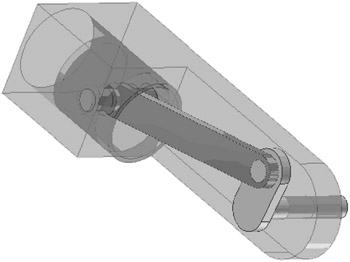
Chapter 7 includes instruction on how to construct the assembly shown below.

  1. Start Inventor 10 by referring to "Chapter 1 Getting Started".

  2. After Autodesk Inventor 2008 is running, begin an Assembly Drawing. First, move the cursor to the upper left corner of the screen and left click on New. The New File dialog box will appear. Left click on the English tab. Left click on Standard (in).iam as shown in Figure 1.

  3. Left click on OK.

  4. The Assembly Panel will open. Your screen should look similar to Figure 2.

  5. Move the cursor to the middle left portion of the screen and left click on Place Component as shown in Figure 3.

  6. The Place Component dialog box will appear. Locate the Pistoncase1.ipt file and left click on Open as shown in Figure 4.

  7. Inventor will place one piston case in the drawing space while another piston case will be attached to the cursor as shown in Figure 5.

  8. Do NOT left click. Left clicking would cause Inventor to place two piston cases in the assembly drawing. Press the Esc key on the keyboard. Your screen...

UNLIMITED FREE
ACCESS
TO THE WORLD'S BEST IDEAS

SUBMIT
Already a GlobalSpec user? Log in.

This is embarrasing...

An error occurred while processing the form. Please try again in a few minutes.

Customize Your GlobalSpec Experience

Category: Computer Mice and Pointing Devices
Finish!
Privacy Policy

This is embarrasing...

An error occurred while processing the form. Please try again in a few minutes.