Learning and Applying Autodesk Inventor 2008 Step-by-Step
Chapter 2: Learning More Basics

Overview

Objectives:

  • Create a simple sketch using the Sketch Panel

  • Dimension a sketch using the General Dimension command

  • Revolve a sketch in the Part Features Panel using the Revolve command

  • Create a hole in the Part Features Panel using the Extrude command

  • Create a series of holes in the Part Features Panel using the Circular Hole command

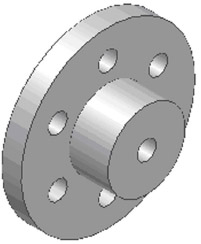
Chapter 2 includes instruction on how to design the part shown below.

  1. Start Autodesk Inventor 2008 by referring to "Chapter 1 Getting Started".

  2. After Autodesk Inventor 2008 is running, begin a new sketch.

  3. Move the cursor to the upper left corner of the screen and left click on Line as shown in Figure 1.

  4. Move the cursor somewhere in the lower left portion of the screen and left click once. This will be the beginning end point of a line as shown in Figure 2.

  5. Move the cursor to the right and left click once as shown in Figure 2.

  6. Move the cursor up and left click once as shown in Figure 3.

  7. Move the cursor to the right and left click once as shown in Figure 4.

  8. Move the cursor up and left click once as shown in Figure 5.

  9. Move the cursor to the left and left click once. Ensure the dots between the first end point and the last end point appear as shown in Figure 6.

  10. Move the cursor back to the original starting end point and left click once as shown in Figure 7. Press the Esc

UNLIMITED FREE
ACCESS
TO THE WORLD'S BEST IDEAS

SUBMIT
Already a GlobalSpec user? Log in.

This is embarrasing...

An error occurred while processing the form. Please try again in a few minutes.

Customize Your GlobalSpec Experience

Category: Computer Mice and Pointing Devices
Finish!
Privacy Policy

This is embarrasing...

An error occurred while processing the form. Please try again in a few minutes.