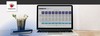
The graphical interface to the Absoft compiler can be started from Windows by selecting Programs from the Start menu and then compile from the Absoft Tools submenu. A command line version of an individual compiler can be started with one of the commands f90, f77, or cc. Both methods allow the user to compile source files quickly and easily. The Absoft compilers can be run either from a command line or from the Absoft Developer Tools Interface.
| Note | It is assumed that the compiler has been installed on the C: drive. If this is not the case, substitute the correct drive letter in the examples as appropriate. |
Selecting Programs from the Start menu and then Compiler Interface from the Absoft submenu opens the Absoft Developer Tools Interface. It can also be started by selecting Run from the Start menu and typing c:\Absoft\bin\Atools or by typing Atools at a console or command line window. The Windows NT Command Prompt or Windows XP MS-DOS Prompt should be opened by selecting Programs from the Start menu and then Development Command Shell from the Absoft submenu. Opening the console window in this way automatically sets the environment variables by executing the c:\Absoft\bin\absvar.bat batch file.
Error may occur when compiling a program in the source file syntax or with the compiler options selected. All errors and warning messages are shown in the compiler output window in a format similar to the following:
error on line...
Copyright Elsevier Inc. 2007 under license agreement with Books24x7


 TABLE OF CONTENTS