Learning and Applying Solid Edge V20 Step-by-Step

Objectives:
Create a simple sketch using the Sketch commands
Dimension a sketch using the SmartDimension command
Extrude a sketch using the Protrusion command
Create a hole using the Cutout command
Create a fillet using the Round command
Create a counter bore using the Hole command
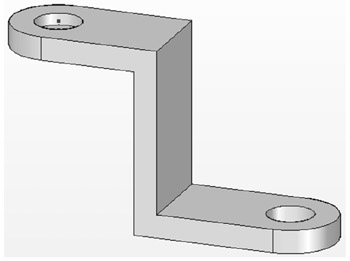
Chapter 1 includes instruction on how to design the part shown below.

Start Solid Edge by moving the cursor to the
button in the lower left corner of the screen. Click the left mouse button once.
A pop up menu of the programs that are installed on the computer will appear. Scroll through the list of programs until you find "Solid Edge".
Move the cursor over the text "Solid Edge" and left click once as shown in Figure 1.
Solid Edge will open (load up and begin running).
The Text on Buttons warning dialog box may appear indicating that if the screen resolution is lower than 1280 x 1024, toolbars containing text on buttons may exceed the display area. If this is a problem you will need to increase the screen resolution to 1280 x 1024. If this is not a problem left click on Yes as shown in Figure 2.
The screen should look similar to Figure 3.
Move the cursor to the upper left portion of the screen and left click on the Solid Part link as shown in Figure 4.
Move the cursor to the upper middle portion of the screen and left click on the "Sketch" icon...