Learning and Applying Solid Edge V20 Step-by-Step

Objectives:
Create an Auxiliary View using the Auxiliary View command
Dimension views using the SmartDimension command
Create a Section View using the Section View command
Create Text using the Text Profile command
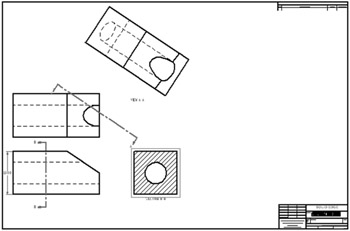
Chapter 4 includes instruction on how to create the drawing shown below.

Start Solid Edge by referring to "Chapter 1 Getting Started".
After Solid Edge is running, open the .par file that was created in Chapter three. Move the cursor to the upper left corner of the screen and left click on the "Open" icon as shown in Figure 1.
The Open File dialog box will appear. Locate the drawing that was created in Chapter three. Left click on the drop down arrow to the right of the text "Files of type:". A drop down menu will appear. Left click on Draft documents. Left click on Part1.dft as shown in Figure 2.
Left click on Open.
After the .dft file is open, move the views closer to each other to provide additional room on the drawing. Start by moving the cursor over the top view. A red box will appear around the view. Left click (holding the left mouse button down) on the red box and drag the view down closer to the front view as shown in Figure 3.
Move the side view closer to the front view. Start by moving the cursor over the side view. A red box will appear around the view. Left click (holding the left mouse button down)...