Learning and Applying Solid Edge V20 Step-by-Step

Objectives:
Design a simple part
Learn to use the Pattern Along a Curve command
Learn to edit a part using the Pattern Along a Curve command
Edit the part using the Sketch command
Edit the part using the Protrusion command
Edit the part using the Chamfer command
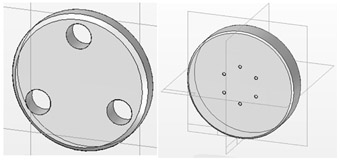
Chapter 5 includes instruction on how to design and edit the part shown below.

Start Solid Edge by referring to "Chapter 1 Getting Started".
After Solid Edge is running, begin a new sketch.
Move the cursor to the upper left corner of the screen and left click on Circle as shown in Figure 1.
Move the cursor to the center of the screen and left click once. This will be the center of the circle as shown in Figure 2.
Move the cursor to the right and left click once as shown in Figure 3.
Move the cursor to the middle left portion of the screen and left click on SmartDimension as shown in Figure 4.
Move the cursor over the edge (not center) of the circle until it turns red. Left click once as shown in Figure 5. The dimension box will be attached to the cursor.
Move the cursor to where the dimension will be placed and left click once as shown in Figure 6. The dimension will appear in the box.
While the dimension is highlighted type 2.000 in the dimension box as shown in Figure 7. Press the Enter key on the keyboard.
The...