Learning and Applying Solid Edge V20 Step-by-Step

Objectives:
Learn to import existing solid models into an assembly
Learn to assemble parts in an assembly
Learn to edit/modify parts while in an assembly
Learn to create a motor to simulate motion in an assembly
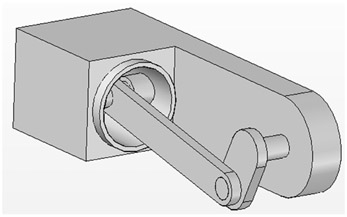
Chapter 7 includes instruction on how to construct the assembly shown below.

Start Solid Edge by referring to "Chapter 1 Getting Started".
After Solid Edge is running, begin an Assembly drawing. Move the cursor to the middle left portion of the screen and left on Assembly as shown in Figure 1.
The Assembly portion of Solid Edge will open. Your screen should look similar to Figure 2.
Move the cursor to the upper left portion of the screen and locate the parts that were created in Chapter 6. A preview of each of the highlighted parts will be displayed as shown in Figure 3.
Double click on Pistoncase1. Solid Edge will insert the part into the workspace as shown in Figure 4.
Move the cursor to the upper left portion of the screen and left click on the "Parts Library" tab. Double click on Wristpin1 as shown in Figure 5.
Solid Edge will insert the part into the workspace as shown in Figure 6. To move the wristpin left click on it (holding the left mouse button down) and move it to the desired location.
Move the cursor to the upper left portion of the screen and left click on the "Parts Library" tab. Double click on Piston1 as shown...