3D for the Web: Interactive 3D animation using 3ds max, Flash and Director
Introduction to Modeling in 3D: Building Blocks

Create two separate standard primitive boxes in the top viewport, any size, and stack one on top of the other.

What to do

Click Create > Standard Primitives > Box. Click and drag in the top viewport to create a rectangle, then drag again (three dimensions, remember).

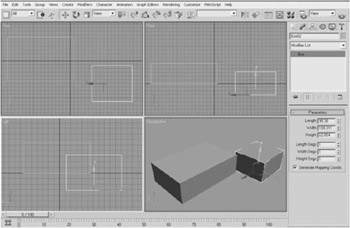
You will not see anything happen in the top viewport, but if you look at the others, you will see a new height dimension being added. Make another box. Put one box on top of the other by using the Select and Move icon in the Tool Bar. Try this first of all in the perspective viewport, and you will discover how hard it can be to manipulate in freeform 3D space, but if you use the three orthographic views, it is a simple matter to arrange a stack of boxes by sticking to two axes at a time (Figure 1.1). Try and develop an ease with looking and moving from one window to another, and check the result in your perspective viewport. (Incidentally, it is always good practice to start creating any object in the top viewport.)


Figure 1.1: Stacking Boxes. The four views in 3D Studio Max

UNLIMITED FREE
ACCESS
TO THE WORLD'S BEST IDEAS

SUBMIT
Already a GlobalSpec user? Log in.

This is embarrasing...

An error occurred while processing the form. Please try again in a few minutes.

Customize Your GlobalSpec Experience

Category: Valve Boxes and Curb Boxes
Finish!
Privacy Policy

This is embarrasing...

An error occurred while processing the form. Please try again in a few minutes.