3D for the Web: Interactive 3D animation using 3ds max, Flash and Director

How to Animate a Turtle Button

For the purposes of creating the simplest button animation, we will need to have our turtle in three states: dormant in his shell, out ready for action and squashed. Now is a good time to set up a camera, as we want to 'lock off' the scene so it will animate smoothly when the three stills are put onto the Web, and unlike the button, we will probably need to use the perspective viewport to animate.

Click on Create > Camera. You will see there are two sorts, Free and Target. Select the Target Camera as they allow you more control as you can position the camera and the target. Click and drag in the top viewport to create a camera and its target. Obviously the target needs to be on your turtle, but you can position your camera anywhere that gives a nice angle on your subject. ( Hint: If you click in a viewport and type 'c' it will become a viewport of the camera. Typing 'p' will return you to perspective.)

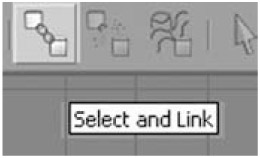
Although most of our turtle can be animated freely, just as the button, there is one thing we should do to ensure that the eyeballs stay with the head. In the top tool bar there is tool called 'Select and Link' (Figure 1.29).


Figure 1.29: The Select and Link tool in 3D Studio Max

Click on it and pick an eyeball. Link it to the turtle's head by dragging...

UNLIMITED FREE
ACCESS
TO THE WORLD'S BEST IDEAS

SUBMIT
Already a GlobalSpec user? Log in.

This is embarrasing...

An error occurred while processing the form. Please try again in a few minutes.

Customize Your GlobalSpec Experience

Category: Low Light Cameras
Finish!
Privacy Policy

This is embarrasing...

An error occurred while processing the form. Please try again in a few minutes.