3D for the Web: Interactive 3D animation using 3ds max, Flash and Director
An introduction to the simplest animation you can do.
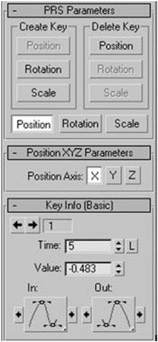
To animate the button being pressed is very simple. Along the bottom of your program is a frame counter. Below it there is a button called Auto Key. Switch Auto Key on (in earlier versions of 3ds max this was less confusingly called the 'animate' button) and the surrounding viewport box will turn red, this reminds you that you are now in Animation mode. The first thing we need to do is set a Keyframe for the button in its normal position. To do this, select your button and from the top right panel select Motion. Under PRS Parameters, Click on the Create Key > Position. A key will appear on the timeline at 0 (Figure 1.10).
This Keyframe sets our button at that time, in that position. To animate, move the slider on the timeline on to frame 8, and in a side viewport move your button down to look as if it has been pressed. A Keyframe will automatically appear. You can play your animation now and the button will go down. That is all the animation you need to do for actually moving the button. The button will be taking rather a long time to get pressed, eight frames is the equivalent of a third of a second and a bit too slow for our purposes, so now by moving the Keyframes, we...