Apple Aperture 2: A Workflow Guide for Digital Photographers
Including clear explanations and step-by-step guidance, this book shows you the best way to import, organize and enhance your images for ease of management and high quality results.
 TABLE OF CONTENTS
 Aperture stores all of your images in its Library. Under the hood, this is a complex collection of folders, sub-folders, packaged files and original images, accompanied by thumbnails, previews and metadata files describing how they should be organized and what changes you have made to them.
At a system level -on your hard drive-your images are organized in a complex series of embedded folders hidden inside a package in your Pictures folder called Aperture Library. Double-clicking this will open Aperture, but right-clicking and selecting Show Package Contents will open it up for inspection. While there is no harm in taking a look at what it contains, you should resist the temptation to fiddle with its contents, as doing so could cause irreparable damage to your Photo Library, and you risk losing some or all of your images.
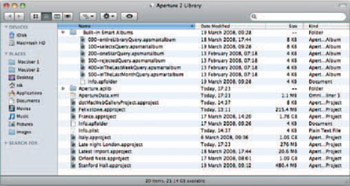
Within this package, you'll see two folders-Built-in Smart Albums and Aperture.aplib - which control how Aperture organizes your files, along with a series of folders whose names match the Projects in your Aperture Project pane. These are the roots of an extensive folder tree that contains a directory for every sub-folder in your Library, and at the furthest ends of each branch, your original Raw images, plus thumbnails and previews in JPEG format, which were created when you imported your pictures (Fig. 2.2).