CD and DVD Forensics

Walking readers through all facets of handling, examining, and processing CD and DVD evidence for computer forensics, this how-to book provides tools to open CDs and DVDs in an effort to identify evidence of a crime.
 TABLE OF CONTENTS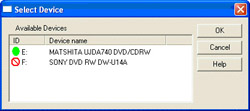
A green dot indicates that a disc is inserted and the drive is ready to be used. The red symbol indicates a drive that is not ready. Put the disc to be examined into a drive in the dialog box and wait for the red symbol to turn green. Then either double-click the drive or select the drive and click OK to continue.
There are no options to select and no information about the disc is required from you. CD/DVD Inspector automatically determines everything that is required.
The message shown in Figure 6.2 is displayed when the examination of the disc is complete. At this point, all of the information about the disc has been gathered, but the actual data files have not been copied.
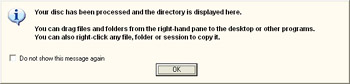
When this message is acknowledged, the CD/DVD Inspector window is displayed (see Figure 6.3).
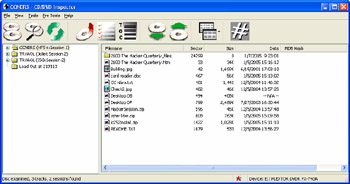
The left window pane shows sessions, the file systems within those sessions, and directories. The right window pane shows the files contained in the selected directory. The last line in the left window pane shows Lead out if a proper lead-out exists on the disc. Discs that were not closed after the last session will not show a lead out. The toolbar at the top provides easy-to-reach buttons for many common functions. The toolbar buttons are:
 | Selects a different CD or DVD device. |
 | Displays sectors... |