Masks can be used to control which pixels are concealed or revealed on any image layer except the background layer. If the mask layer that has been used to conceal pixels is then discarded the original pixels reappear. This approach to montage work is termed non-destructive . In the full version of Photoshop the mask can be applied to any layer. In Photoshop Elements layer masks are only available on adjustment layers, but these can be used to mask the pixels on the layer, or layers, above.
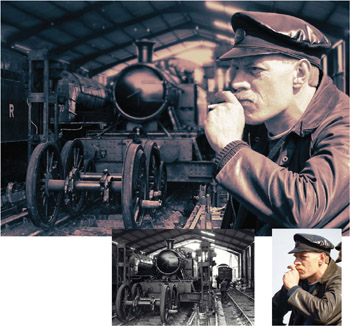 Forget cutting and pasting - learn the craft of professional montage using advanced masking techniques
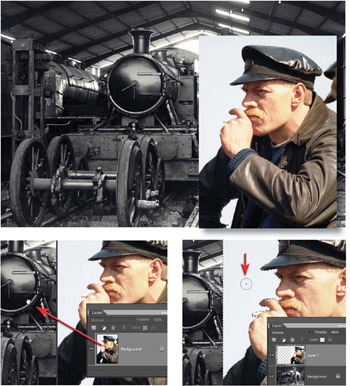
 1. Open the resource images and drag the layer thumbnail of the train driver image into the image window of the train to create a file with two layers. Use the Move tool to position the second layer. Select Free Transform (Image > Transform > Free Transform) to scale and move the image into position (the train driver should be on the the right side of the image and be the same height as the background layer).
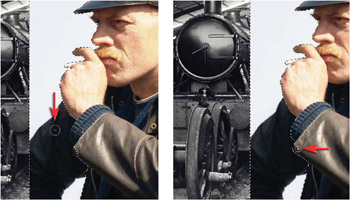
2. Select the majority of the sky on Layer 1 by using either the Quick Selection tool or Magic Wand tool. Use the Add to selection and Subtract from selection icons in the Options bar to modify the selection.
3. Holding down the Option key when making a selection with the Quick Selection tool will allow you to drag over any parts of the image you would like to...
Copyright Mark Galer 2008 under license agreement with Books24x7

 TABLE OF CONTENTS