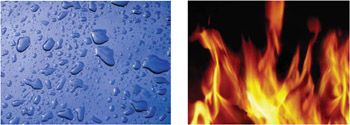
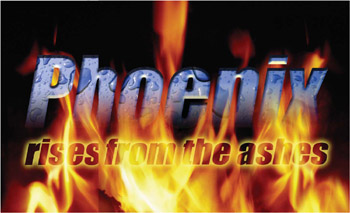
Photoshop Elements may be a couple of tools short of a six-pack when it comes to working with vector shapes and paths, the principal tools of the trade for graphic designers, but creative typography is one area where Photoshop Elements users do not have to bow down their heads in shame. We can be subtle and sophisticated, using conservative and delicate fonts with carefully color-matched hues or, for those of you who believe typography does not always have to whisper, here are a couple of major techniques we can employ to get our message across loud and clear.
 Master the techniques for working creatively with text layers and images to create stunning graphics
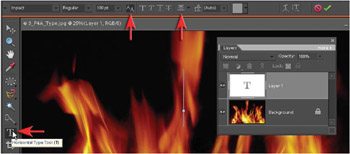
 1. Open the Fire image from the supporting DVD. Select the Type tool in the Tools palette and then specify the font style, size and select the anti-aliased and align center options for the text.
| Note | The anti-aliased option when highlighted will ensure smooth-edged type. Color is not important for this project as the type will be filled with another image. |
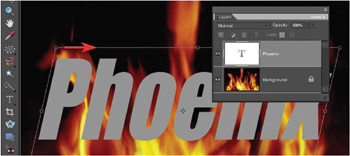
2. Stretch or distort the type layer by applying the Free Transform command (Ctrl+T). The type in the example is stretched vertically by dragging the top-center handle upwards and then skewed to the right. Press the Enter key to apply the transformation.
PERFORMANCE TIP Transform alters the shape and/or size of the subject matter on a single selected layer. Holding the Shift key down whilst dragging a corner handle will constrain the...
Copyright Mark Galer 2008 under license agreement with Books24x7

 TABLE OF CONTENTS